A “People in your organization” link feels harmless. It stays inside the company, after all. In practice it’s one of the most common forms of oversharing I find in tenants: the link can be forwarded freely, everyone who clicks it gets access, and it keeps working long after the project that needed it has ended.
In my Purview checklist and in check 12 of the Purview Reference I recommend keeping these links to a minimum, and I name AvePoint Policies as my preferred way to do that. This post shows how I set it up for OneDrive, step by step, with screenshots from a demo environment.
Why OneDrive first
OneDrive is personal storage. I often explain it to users as the good old home drive (H:), but with the option to share. That option stays: users can still share with specific colleagues, and with external people where the organisation’s policy allows it. What I take away is the option to make a file available to the whole organisation in one click. Anyone who wants to work with a larger group belongs in a team, where membership, ownership and lifecycle are arranged.
OneDrive also has a practical problem. New OneDrives don’t inherit site settings you’ve applied with PowerShell, so you’d have to run a script on a schedule and accept the gap in between. A policy in AvePoint Policies applies to every OneDrive in scope, including the ones created tomorrow.
One OneDrive policy, two rules
In Policies, go to Policies > Service level > Create policy and choose OneDrive as the object type. Give the policy a clear name and description; you’ll be glad of it once you have twenty of them.
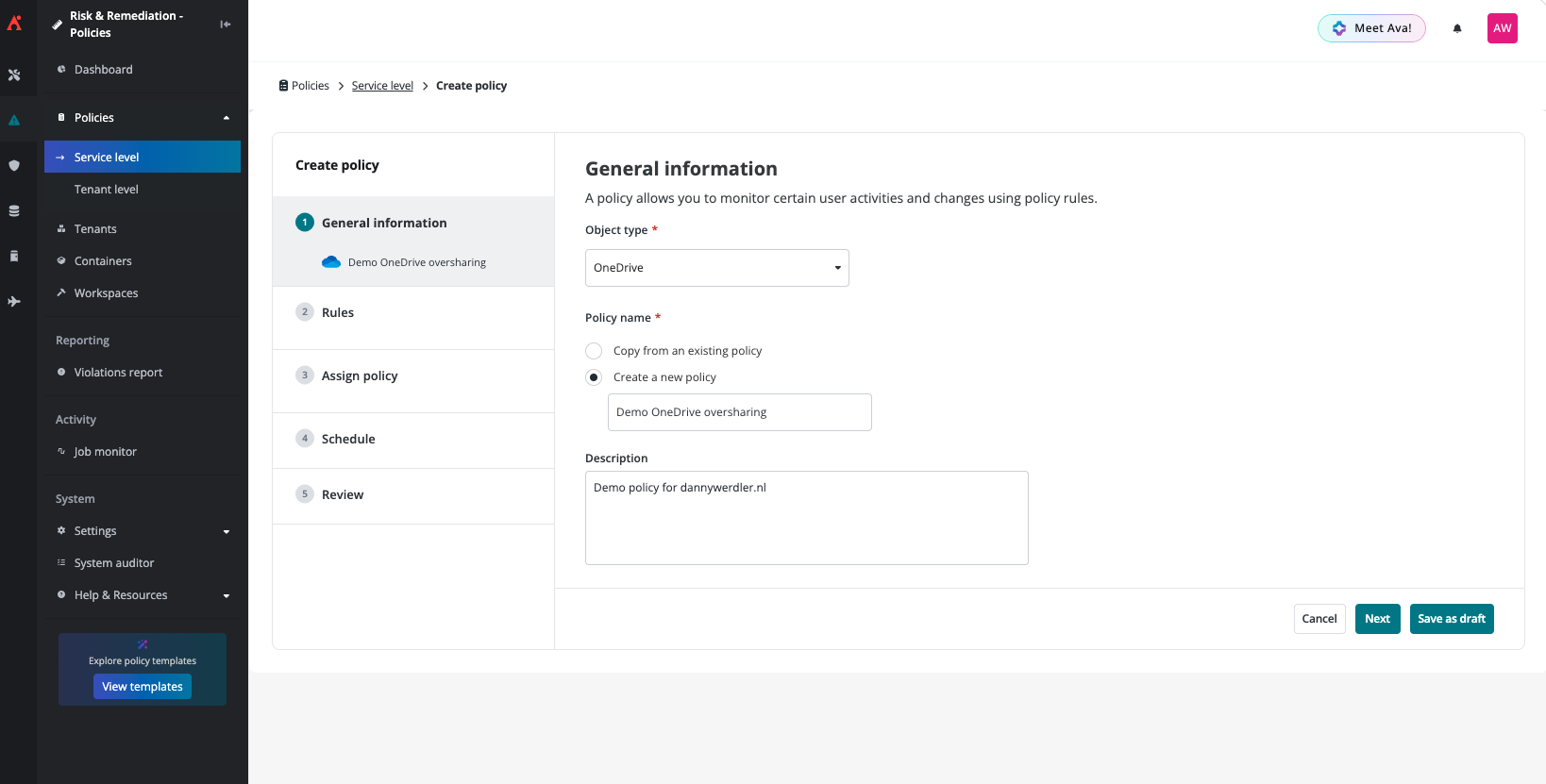
Under Rules I add two rules: Site Content Sharing Settings and Sharing Link Expiration Enforcement. After that you assign the policy to the OneDrives in scope (Assign policy) and set how often it runs (Schedule).
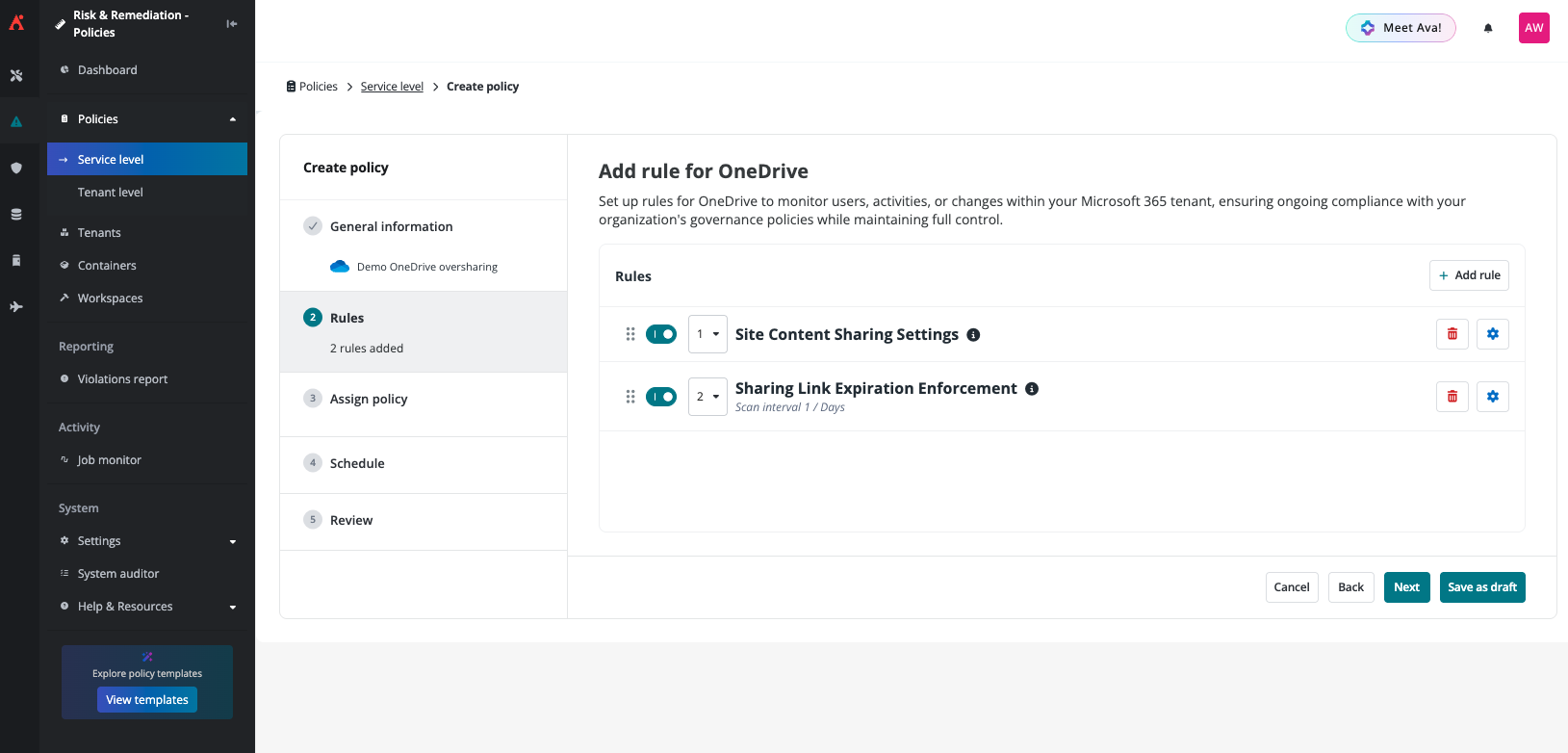
Rule 1: Site Content Sharing Settings
This rule sets the sharing settings of each OneDrive and puts them back when someone changes them. These are the settings I use:
- Define users with whom site content can be shared: New and existing guests. This switches off Anyone links: people outside the organisation always have to sign in or enter a verification code.
- Control company-wide sharing links: Restrict the ‘People in <Your Organization>’ sharing option. The option disappears from the share dialog.
- Enforce a default sharing link type: Specific people. The default is what users almost always pick, so make it the safe one.
- Reset sharing settings when a violation is found, so the policy automatically restores anything that has been changed.
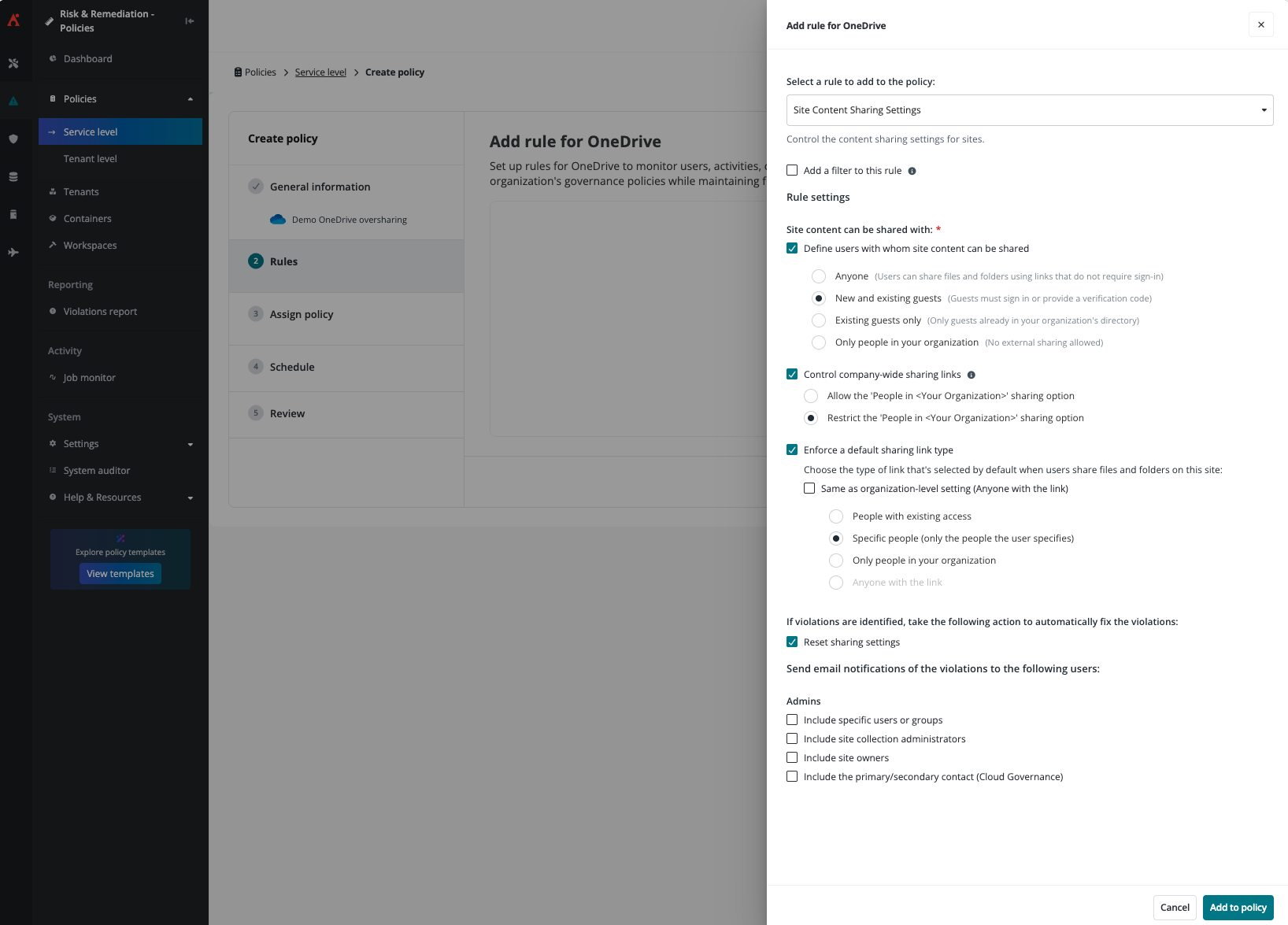
Ideally I’d go one step further and choose Existing guests only for OneDrive, so users can only share with guests who are already in the directory. That only works with a proper process for inviting guests, for example a guest request in AvePoint Cloud Governance: a user requests a guest, and can only share once that guest has been approved and invited. For many organisations that’s a big step, so New and existing guests is the middle ground I usually start with.
Rule 2: Sharing Link Expiration Enforcement
Restricting the option prevents new organisation links, but the ones that already exist keep working. This rule cleans them up. My settings:
- Anyone links: expire 1 day after creation.
- Organisation links: expire 1 day after creation.
- Specific people links: in this demo 90 days after last access, using the creation date when there’s no last access date. Whether you want this at all is something to agree with the organisation.
- Delete the out-of-policy sharing links when a violation is found.
- An independent scan interval of 1 day for this rule.
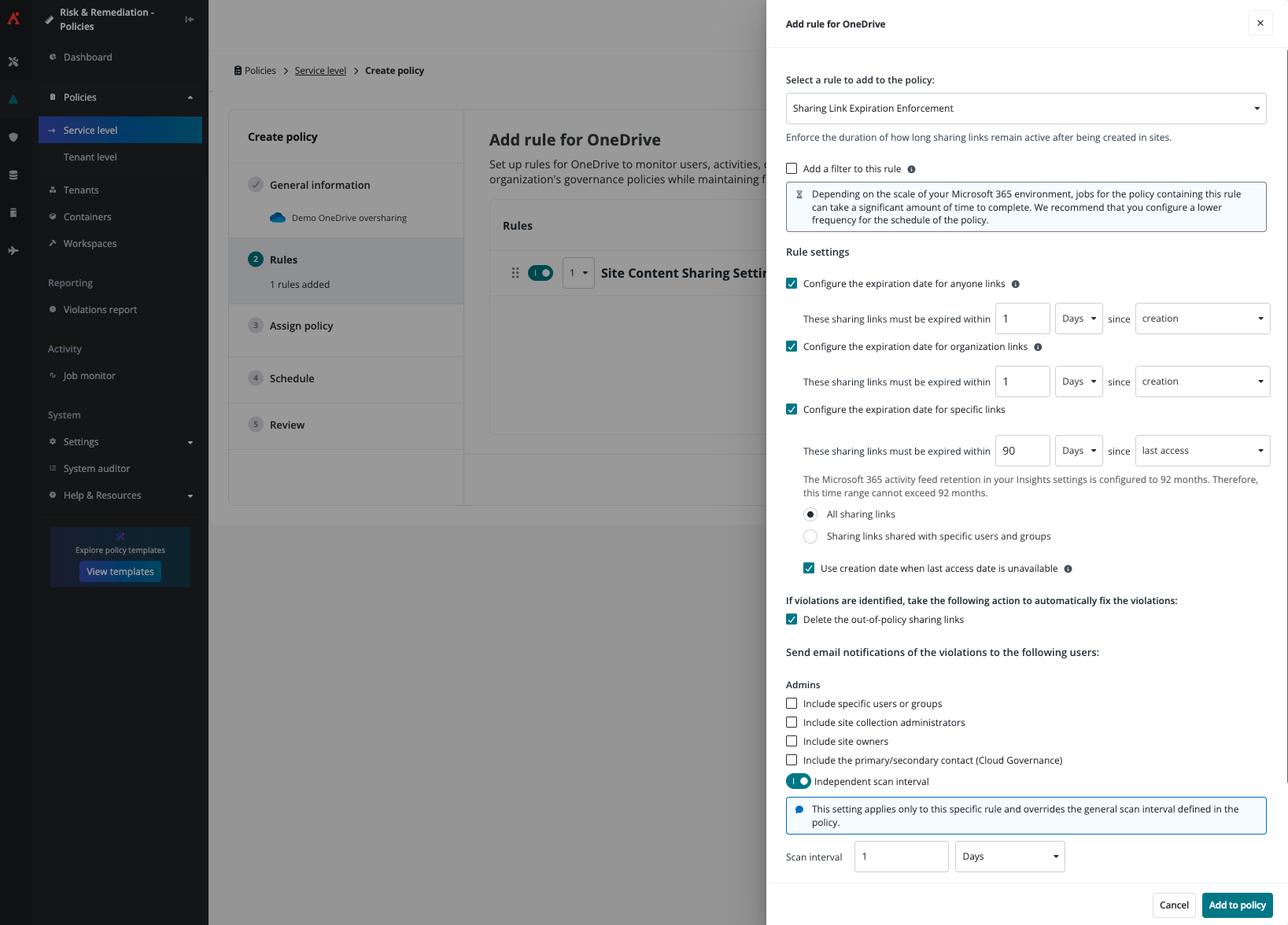
Why not use Microsoft’s own expiration policy for organisation links (MC1242772)? Two reasons. It only applies to links created after you switch it on, so the backlog of existing links stays exactly as it is, and that backlog is usually the problem. And the shortest maximum it accepts is 7 days. This rule also handles links that already exist and removes them after one day. One more thing: AvePoint warns that in large environments the jobs for this rule can take a long time, so think about the scan frequency rather than accepting the default.
Monitor first, then enforce
Deleted links don’t come back unless you have AvePoint Cloud Backup for M365. Before I switch on the automatic fixes, I want to know how big the impact will be. There are two ways to find out:
- Export from AvePoint Insights. Export the sharing links of the type that will disappear. You’ll see how many users have them, who the heavy users are and, by filtering on date, how old the links are. Old links are rarely missed; links that are in active use are.
- A dry run in AvePoint Policies. Set up the policy as above, but leave Delete the out-of-policy sharing links and Reset sharing settings unticked. The policy then reports violations without fixing them, and the dashboard and violations report show which OneDrives and users would be affected.
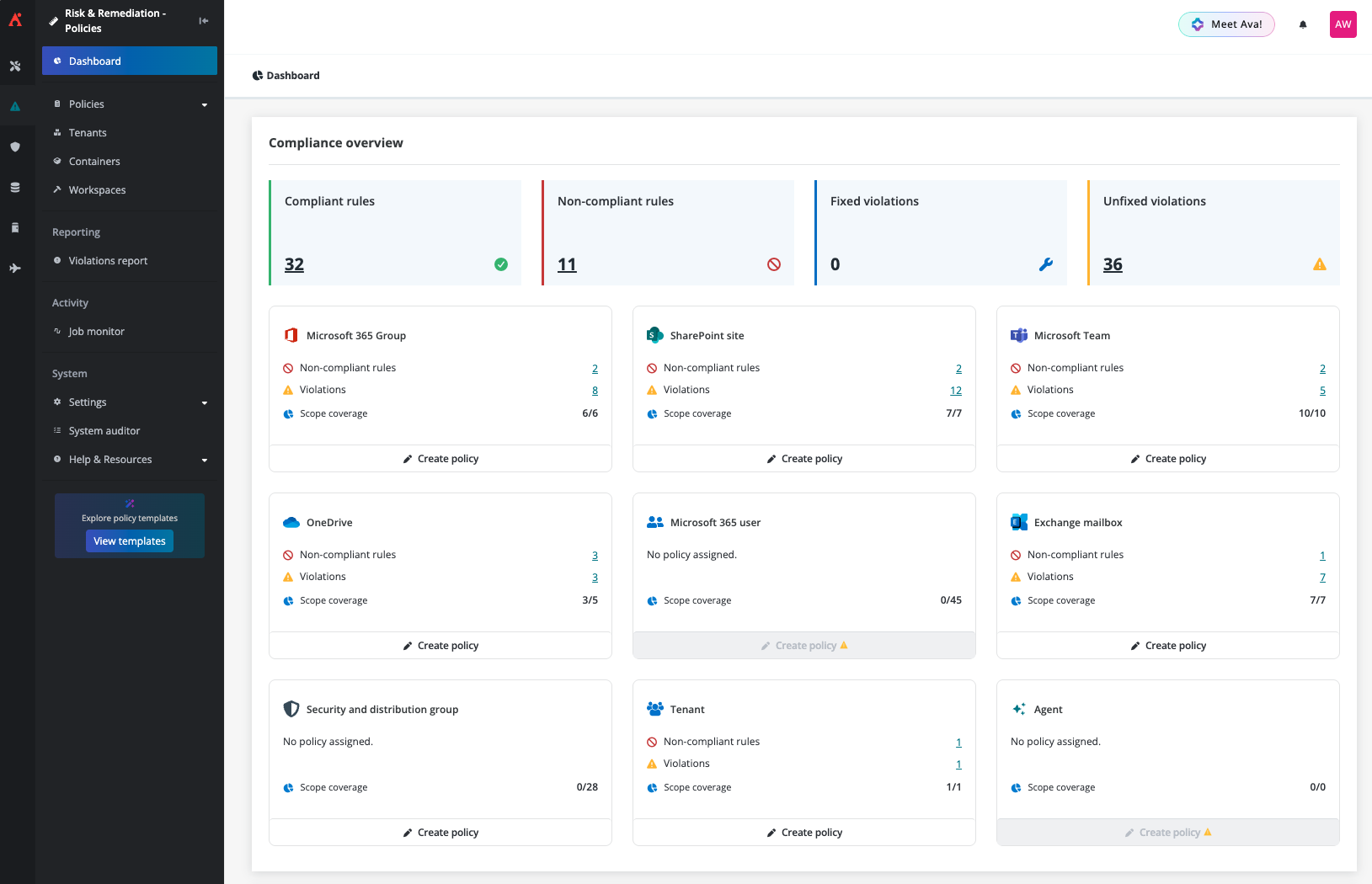
Use what you find to shape the communication. A handful of users with a few old links need a different message from a department that runs its daily work on organisation links. Once the communication has gone out, tick the remediation actions and the policy enforces from then on. I don’t use e-mail notifications for these rules: the policy fixes the violation and the dashboard keeps the record.
Communication is half the work
Don’t roll this out unannounced. Users who suddenly can’t share the way they’re used to will find another way: a USB stick, private e-mail, a consumer cloud service. Then you’re worse off than before. Tell them:
- why you’re doing it: an organisation link gives access to everyone who gets hold of it, including people who were never meant to see the file;
- what changes: the “People in your organization” option disappears from OneDrive, and existing links of that type will stop working;
- what stays: they can still share with specific colleagues and, depending on the policy, with external people;
- where to go for wider collaboration: a team.
Make sure you have backing from management. A message that comes from the top, or at least carries its support, lands very differently from one sent by IT alone.
An example message to adapt:
Sharing from OneDrive is changing on [date]
From [date], you can no longer share files in your OneDrive with “everyone in the organisation”. Existing links of that type will stop working.
Why? A link for everyone in the organisation can be forwarded freely, and anyone who opens it gets access. Over time, files end up with people who were never meant to see them.
What stays the same? You can still share files and folders with specific colleagues, and with external contacts where our policy allows it. Think of your OneDrive as your personal home drive: your own files, which you share with specific people when you need to.
Working with a larger group? Use a team. That’s where shared files belong, with clear members and owners.
Has a link you still need stopped working? Share the file again with the people who need it, or contact [service desk].
Teams and SharePoint sites
This example is for OneDrive, but my advice is to apply the same thinking to Teams and SharePoint sites where you can, and allow organisation links only where there’s a real need. That’s harder than OneDrive, because not every site has the same purpose. If your collaboration types and metadata are in order in AvePoint Cloud Governance, it becomes manageable: you can scope policies on that metadata and give each type of workspace the sharing settings that fit.
Without AvePoint
You can get part of the way with Microsoft’s own tools, but know where they stop. New OneDrives don’t inherit the site setting, so run the script below on a schedule. Microsoft’s expiration policy for organisation links doesn’t go below 7 days and leaves existing links alone. And the sharing links reports in SharePoint Advanced Management’s data access governance only show sites where links were created in the last 28 days. That’s useful for spotting new oversharing, but it won’t show you the years of old links that are already there.
# Default link type: specific people
Set-SPOTenant -DefaultSharingLinkType Direct

# Per OneDrive or site: no "People in your organization" links
Set-SPOSite -Identity <url> -DisableCompanyWideSharingLinks Disabled

# Maximum lifetime of organisation links in days (MC1242772, minimum 7)
Set-SPOTenant -OneDriveOrganizationSharingLinkMaxExpirationInDays <days>
Set-SPOTenant -CoreOrganizationSharingLinkMaxExpirationInDays <days>
Heads-up: hero links
Microsoft is rolling out a new sharing experience from early October to the end of November 2026 (MC1454378). Every file and folder gets one primary sharing link, the hero link, and users can change its audience afterwards without creating a new link. By default it’s set to “Only people added”, and you set that default per site or OneDrive with DefaultMainLinkScope. Existing links keep working.
Two things matter here. According to Microsoft, existing link expiration policies apply to the old-style links only and don’t govern hero links, so MC1242772 doesn’t help you there. And a hero link that a user widens to the whole organisation stays that way until someone narrows it again. Hero links do respect the tenant’s sharing settings. So set the default on OneDrives to OnlyPeopleAdded, and check how your own tooling, AvePoint Policies included, detects and enforces hero links.
# Default audience of the hero link per OneDrive or site
Set-SPOSite -Identity <url> -DefaultMainLinkScope OnlyPeopleAdded
Not the whole story for Copilot
A quick nuance, because this often gets overstated: creating a “People in your organization” link doesn’t make a file visible to everyone in search or Copilot. Only people who actually open the link get access, and from then on Copilot can use the file for them. The risk lies in what happens next. A link posted in a busy Teams chat, sent to a large distribution list or put on an intranet page is opened by many people, and their access lasts as long as the link exists. Copilot then brings that content back in answers nobody expected. That’s why limiting new links isn’t enough and cleaning up existing ones matters. It also means limiting sharing links doesn’t make a tenant Copilot ready on its own: sites shared with “Everyone except external users”, public teams and broken permissions give Copilot access without anyone clicking anything.
One of the next keys is Restricted Content Discovery (RCD), a SharePoint Advanced Management feature that keeps a site out of organisation-wide search and Microsoft 365 Copilot. It doesn’t change who has access: it hides the content from tenant-wide search and Copilot, except for users who recently worked with it.
AvePoint is working on RCD support. If all goes to plan, the December release lets Policies enforce the RCD setting on standalone SharePoint sites, with Teams and group-connected sites planned for February 2027, and Cloud Governance supports RCD in provisioning and lifecycle for standalone sites. RCD status in Insights isn’t on the roadmap yet. Combined, that would let you keep sites out of Copilot automatically, based on your governance, and monitor it from Policies and EnPower. These are plans rather than promises. I’ll write a separate post on RCD as soon as it’s supported.
Use your own judgement. The settings in this post come from my own projects and a demo environment, and were checked against the Microsoft documentation at the time of writing. Every tenant is different and both AvePoint and Microsoft change things regularly, so start with a dry run, test outside production and check the current documentation. Roadmap information is based on what AvePoint has shared and may change. You use anything from this site at your own risk; I accept no liability for damage or disruption caused by it.
One response to “Stop oversharing in OneDrive with AvePoint Policies”
[…] In other words: the hero link is a better model from now on. It does not clean up anything. That “People in your organization” link on the salary spreadsheet from 2021 still works tomorrow, and Copilot can still find that file for anyone who ever clicked the link. If you were hoping hero links would solve your oversharing backlog: they won’t. Link cleanup remains a separate project — I described how I approach that for OneDrive in Stop oversharing in OneDrive with AvePoint Policies. […]