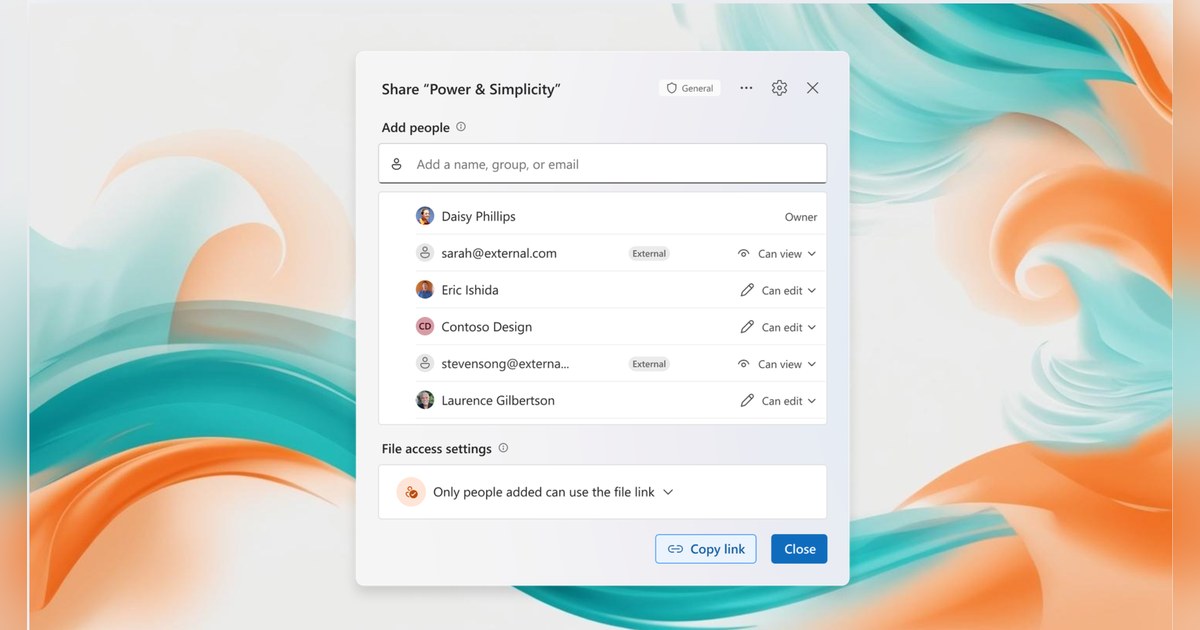
If you have ever cleaned up sharing links in a Microsoft 365 tenant, you know the picture: one document, seven links. One for a colleague, one “People in your organization” link because the first one didn’t work, one Anyone link for a supplier, and a few more nobody remembers creating. Microsoft is now changing the model underneath all of that. Every file and folder gets one primary link: the hero link.
In this post I explain what hero links are, how they differ from the links we have been using for years, what Microsoft is trying to achieve, and — just as important — what it does not solve. Because a hero link only applies from the moment it exists. Everything you shared before that stays exactly as it is.
Status: rolling out, not in every tenant yet
Microsoft announced the new sharing model at the Microsoft 365 Community Conference in May 2025 and calls it the third generation of sharing. The Message Center post is MC1454378 (roadmap ID 492622). The rollout started in early October 2026 and, after being moved more than once, should be complete by the end of November 2026 for Worldwide, GCC, GCC High and DoD. So if you don’t see it in your tenant yet, that is expected. There is no opt-out.
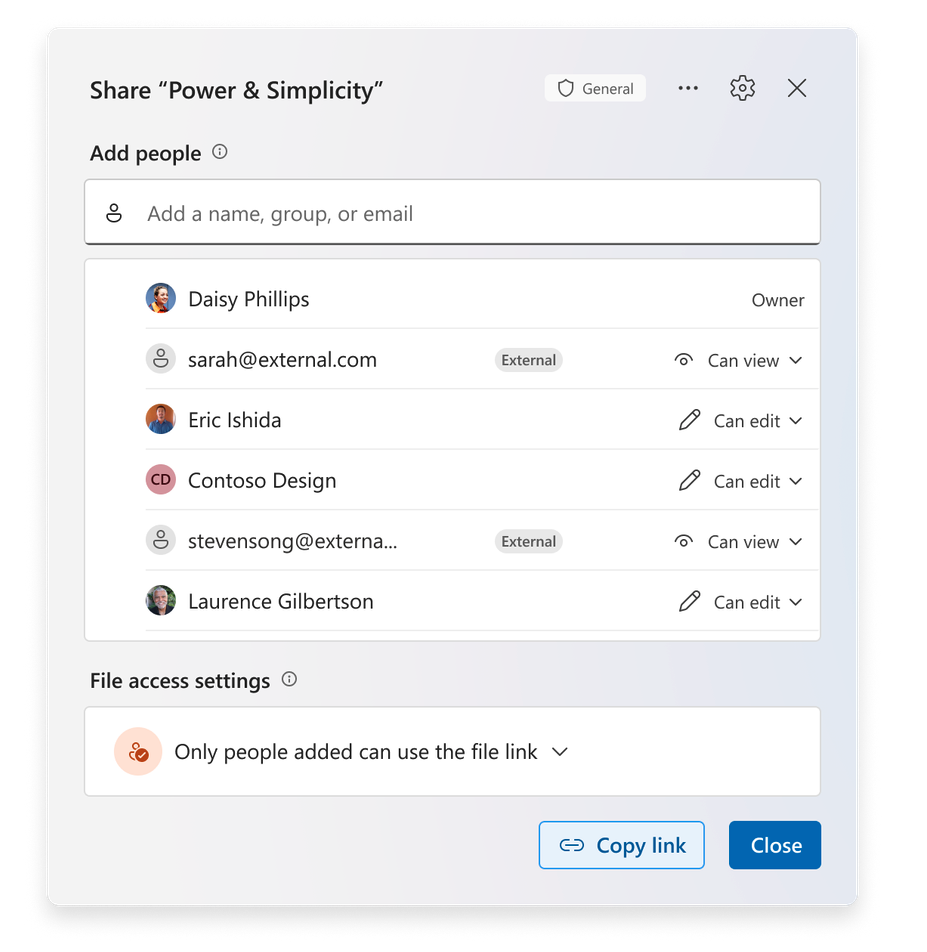
How do you know if you have it? Open the Share dialog on a file in SharePoint or OneDrive on the web. If you see a section called “File access settings” that starts at “Only people added can use the file link”, and a collapsed section with other sharing links, the new experience is live. On the admin side, Get-SPOSite returns a DefaultMainLinkScope property (more on that below).
What is a hero link?
A hero link (Microsoft also calls it the “main link” internally and in PowerShell) is the single primary sharing link of a file or folder. Whether you click Copy link, share via email or copy the URL from the browser’s address bar, you get the same link. The settings of that link determine who can open the item on top of the people who have been given direct access.
- Default audience: “Only people added to the file”. The link itself grants nobody access; it just points to the file for people who already have permissions.
- Wider audiences: “People in your organization with the link” or, if the site allows it, “Anyone”.
- Permission: starts at View; can be changed to Edit or “Can’t download”, within what your own permissions and policies allow.
- Changeable after sending: if a recipient gets access denied, you widen the audience of the same link. No new URL, no resending.
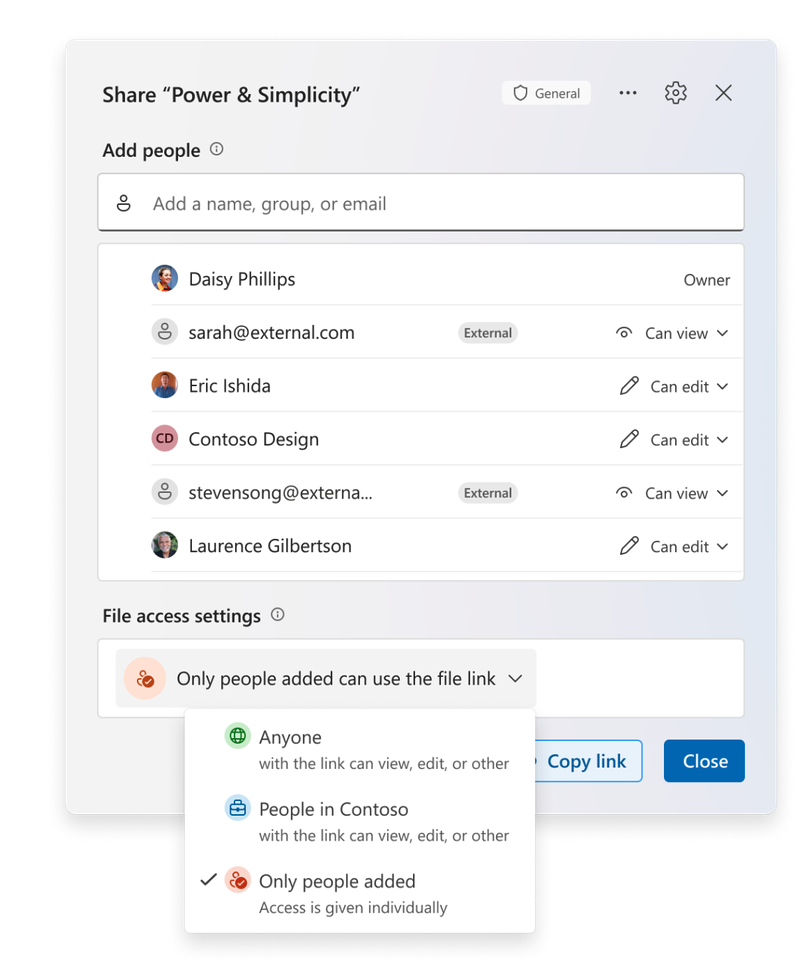
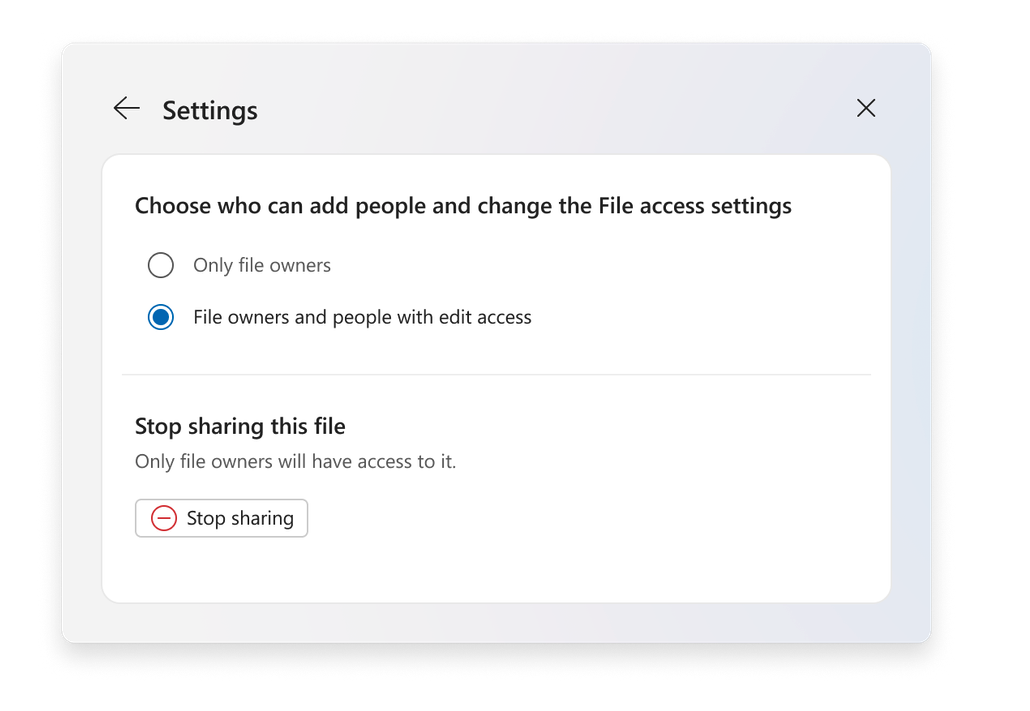
Share and Manage access are merged into one dialog, external recipients are explicitly tagged as “External” and get a “Share outside of your organization?” confirmation, and the gear menu lets you reset the link and decide whether folder access changes apply to the item.
One setting in that menu deserves extra attention from a governance perspective: who may add people and change the file access settings. The choice is “Only file owners” or “File owners and people with edit access”. For sensitive documents, “Only file owners” prevents an editor from quietly widening the hero link to the whole organisation. Note that tenant policies still win: if guests are not allowed to reshare items they don’t own, they can’t, whatever this setting says.
What is Microsoft trying to achieve?
Microsoft’s own story is “simple, smart and secure”, and if you look at the history, the problem they are solving is very recognisable:
- Generation 1 – direct permissions (2011). SharePoint Online launched with permissions granted directly to people. Forward the email to a colleague and they get access denied. According to the product team, that was the number one complaint.
- Generation 2 – sharing links (around 2014). Links solved the forwarding problem but introduced link sprawl: a new link for every audience, users who don’t know which link they sent, and admins with reports full of links nobody can explain.
- Generation 3 – the hero link. One link per item, locked down by default, and you adjust the audience instead of creating another link.
The principle the product team uses is “simple by default, powerful on demand”: most users never need more than one link, and the advanced options (separate links with an expiration date or password) are still there for those who do. What I like about this: the default is restrictive. In many tenants the default link type is still “People in your organization”, and that is exactly the type of link that makes content findable for everyone — and for Copilot — far more broadly than intended.
Legacy sharing links vs hero links
| Legacy sharing links | Hero link | |
|---|---|---|
| Links per item | A new link per audience/permission | One primary link per file or folder |
| Starting audience | Tenant default link type (often “People in your organization”), overridable per site | “Only people added to the file”, regardless of the tenant default link type; overridable per site/OneDrive |
| Starting permission | Default link permission (View or Edit) | Always View |
| Widening access | Create and send a new link | Change the audience of the same link |
| Insight per item | Spread over multiple links in Manage access | One link plus the people added, in one dialog |
| Expiration / password | Yes, and link expiration policies apply | No — and expiration policies do not apply |
| Admin default | Tenant-wide, plus site overrides | Per site collection / OneDrive only, no tenant-wide setting |
| Browser URL | Readable path to the file | The hero link, with a generated ID |
The critical part: what happens to your existing links?
Short answer: nothing. Microsoft’s own FAQ says exactly that: the new model is fully backwards compatible. That is both reassuring and the main point of attention.
- Existing links are not converted into hero links. They keep working and appear as other sharing links in the Share dialog — a section that is collapsed by default, so users will easily overlook them.
- Your current default link settings and link expiration policies keep applying to those legacy links.
- Hero links start fresh. Existing files don’t suddenly become more open, but they also don’t suddenly become more closed.
In other words: the hero link is a better model from now on. It does not clean up anything. That “People in your organization” link on the salary spreadsheet from 2021 still works tomorrow, and Copilot can still find that file for anyone who ever clicked the link. If you were hoping hero links would solve your oversharing backlog: they won’t. Link cleanup remains a separate project — I described how I approach that for OneDrive in Stop oversharing in OneDrive with AvePoint Policies.
Need a link with an expiration date or password? You still create a separate link for that. Those links can now be given a name (for example “HR partners”), which makes it a lot easier to see later what a link was for. They show up in the same “other sharing links” section as your legacy links.
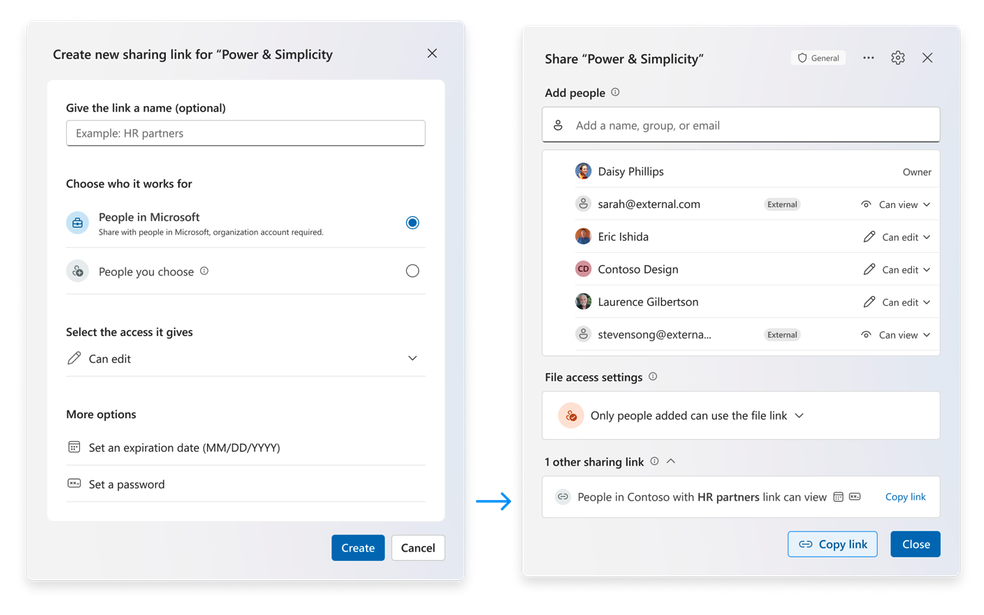
Pros
- The most restrictive option is the default — even if your tenant says otherwise. Legacy links follow the default link type you set at tenant level. If that is “People in your organization” (and in many tenants it still is), every new link starts organisation-wide. A hero link ignores that setting and always starts at “Only people added to the file”, unless you deliberately change the default for a specific site or OneDrive. Secure by default, without first having to fix your tenant settings.
- Better insight into what has been shared. With legacy links, an item could have a whole stack of links in Manage access, and getting an overview of what you had shared from your own OneDrive was cumbersome. With one link per item and Share and Manage access combined, users see in one place who has access and how wide the link is open. Microsoft adds that changes show in real time and that you can now update or remove permissions for several people at once. Note that this is insight per item: for an overview across a whole OneDrive or tenant you still need reporting (see the reporting noise below). For OneDrive assessments I still use and recommend EnPower OneDrive Assessment.
- Less link sprawl. One link per item makes it much easier for users and admins to understand who has access and why.
- Fewer access-denied tickets. The recipient doesn’t need a new URL; the sender adjusts the existing link.
- One consistent experience across Copy link, email and the address bar.
- Reset link gives users a quick way to kill a link that ended up in the wrong place: the old URL stops working, directly added people keep their access.
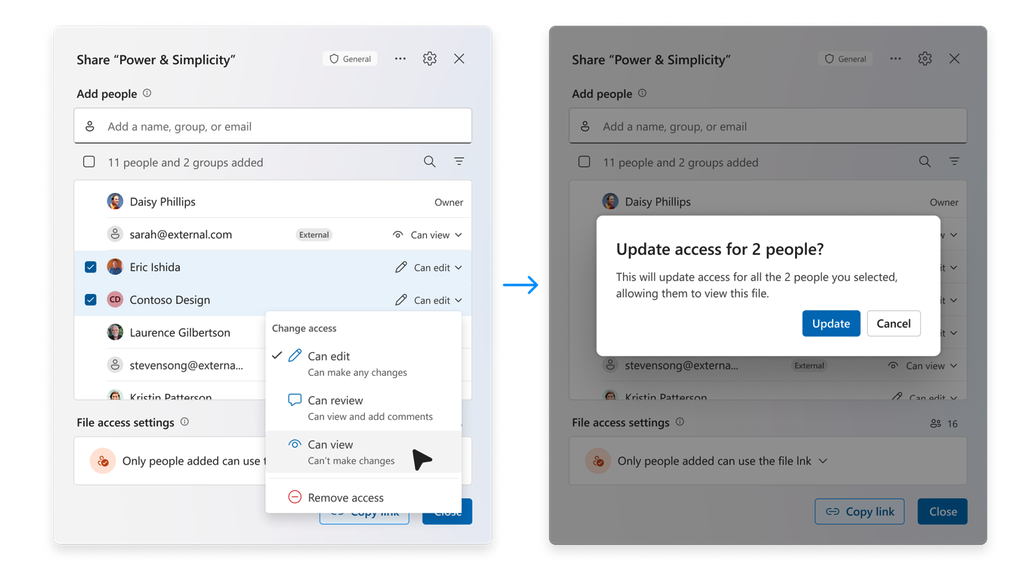
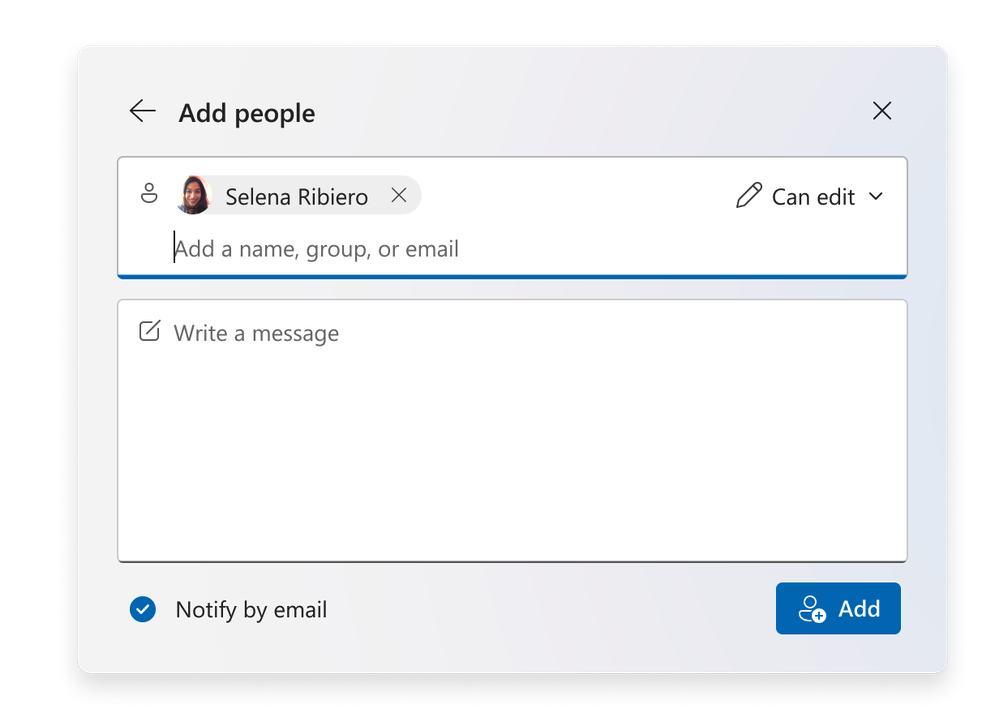
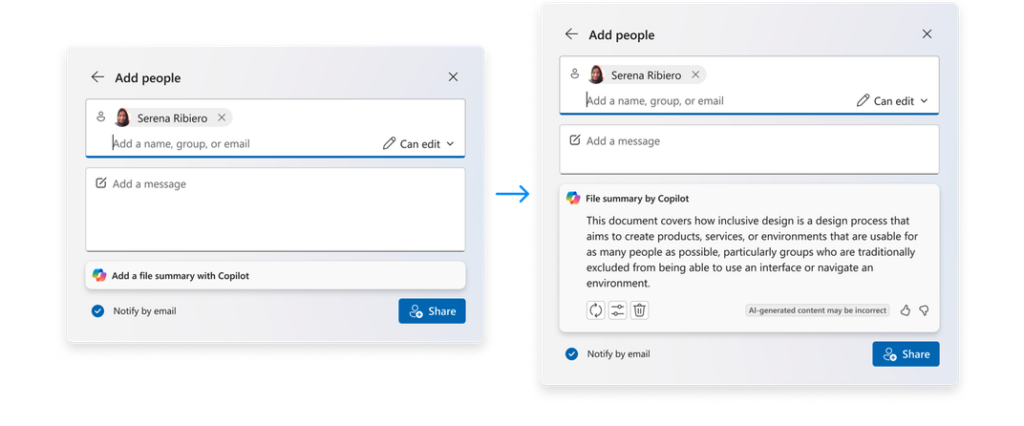
Two smaller improvements that users will notice: you can now choose whether people you add get an email notification (handy when you’re preparing several files before announcing them), and with a Copilot licence you can add an AI-generated summary of the file to the sharing notification.
Cons and points of attention
- Expiration policies don’t apply. A hero link cannot have an expiration date or a password, and your existing link expiration policies don’t govern it. In community testing, a hero link widened to Anyone simply stays open until someone narrows or resets it. If you rely on “Anyone links expire after X days”, that guarantee no longer covers everything.
- No tenant-wide default. The default audience can only be set per site collection or OneDrive. Fine for a handful of sites, painful for a tenant with thousands.
- The default is only a default.
DefaultMainLinkScopesets the starting point; users can still widen the link as far as your sharing policies allow. Your tenant and site sharing settings remain the real boundary. - Widening is retroactive. Change the audience and it applies everywhere that link was ever pasted: emails, Teams chats, intranet pages. Convenient, but also a risk if a user doesn’t realise where the link has gone.
- Reporting noise. In community tests, hero links show up in sharing exports even for files nobody deliberately shared, and in some exports a people-added-only hero link carries the same scope label as an Anyone link. Your “anonymous links” count can look much worse than reality.
- Random-ID URLs. Copy link now returns a link with a generated ID instead of a readable path. Harder to trace, and harder to bulk-rewrite during migrations.
- Permission inheritance. Findings differ: simply opening the dialog and copying the link doesn’t seem to break inheritance, but adding people does, and “Remove access” does not restore it. Test this in your own tenant before you promise anything to site owners.
- Not everywhere yet. Word, Excel and PowerPoint on Mac still use the older Share dialog.
- “Remove access” is harsher than “Stop sharing”. It resets the hero link and removes the added people; only owners keep access. Expect helpdesk calls.
Admin control: DefaultMainLinkScope
The only admin setting for hero links is DefaultMainLinkScope on Set-SPOSite, available in a recent version of the SharePoint Online Management Shell. Microsoft documents two values: OnlyPeopleAdded (the default) and Organization. Some sources also mention Anyone, but it is not in the Message Center post — test before you rely on it.
To get an overview of the current setting across all sites and OneDrives:
# Requires a recent SharePoint Online Management Shell
Connect-SPOService -Url https://contoso-admin.sharepoint.com

# Overview of the hero link default for all sites and OneDrives
Get-SPOSite -Limit All -IncludePersonalSite $true |
    Select-Object Url, Template, DefaultMainLinkScope |
    Export-Csv -Path .\HeroLinkDefaults.csv -NoTypeInformation -Encoding UTF8

# Only the sites where the default was widened to the organisation
Get-SPOSite -Limit All -IncludePersonalSite $true |
    Where-Object { $_.DefaultMainLinkScope -eq 'Organization' } |
    Select-Object Url, DefaultMainLinkScope
Setting it for a specific site, for example an intranet-like site where organisation-wide access is actually intended:
Set-SPOSite -Identity https://contoso.sharepoint.com/sites/Intranet -DefaultMainLinkScope Organization

# And back to the restrictive default
Set-SPOSite -Identity https://contoso.sharepoint.com/sites/Intranet -DefaultMainLinkScope OnlyPeopleAdded
To check an individual item, Microsoft Graph helps: in the /permissions of a drive item, a hero link has a webUrl with a share= parameter and no shareId, while separately created links show an expirationDateTime when one is set. That is an observed pattern rather than a documented property, so treat it as a heuristic.
My advice
I have been advising for a long time to keep “People in your organization” links to a minimum: off for OneDrive, and on Teams/SharePoint only where there is a real need. Hero links fit that approach nicely, as long as you don’t treat them as a cleanup tool.
- Leave the default at OnlyPeopleAdded. Only set
Organizationon sites where organisation-wide access is the purpose (intranet, policies, templates), and document every exception. - Check your outer boundaries. Because expiration policies don’t cover hero links, your tenant and site-level sharing settings (Anyone links on or off, external sharing per site) matter more than ever.
- Keep cleaning up legacy links. Hero links don’t touch your existing backlog. Start by getting insight — for OneDrive I use EnPower OneDrive Assessment for that — and then clean up structurally. How I do that with link restrictions and expiration enforcement is described in Stop oversharing in OneDrive with AvePoint Policies; Purview’s oversharing assessments and SharePoint Advanced Management reports are useful alongside it. If you enforce link expiration with a tool, test whether it recognises hero links before assuming it does.
- Watch for widened hero links on sensitive sites. Combine this with sensitivity labels and DLP so a widened link on a confidential document doesn’t go unnoticed, and teach owners of sensitive files to set “Only file owners” for who can change access.
- Inform users and the helpdesk. Explain the difference between adding people and changing the link, that older links still exist under other sharing links, and what “Remove access” and “Reset link” do.
- Expect noisy reports. Brief whoever reads your sharing reports, so a sudden jump in “anonymous” links doesn’t trigger a false alarm.
Conclusion
Hero links are the biggest change to sharing in Microsoft 365 in years, and the direction is right: one link, the most restrictive audience by default, better insight per item and adjustable without resending. For end users this is genuinely simpler. For admins it is a step forward with a few clear gaps: no expiration, no tenant-wide default, noisy reporting and — above all — no effect on everything that was shared before. See it as a better foundation for new sharing, not as the solution to existing oversharing.
Disclaimer: the PowerShell and advice in this post are based on my own experience and publicly available information at the time of writing; the rollout is still in progress and behaviour may change. Test in your own environment first and use your own judgement — don’t copy anything blindly. Use is at your own risk; I accept no liability for any damage. Product images in this post: Microsoft, used with permission from Microsoft.